Having trouble with PDFs?
Since some of you have asked me on occasion how to make certain types of adjustments to PDF documents to modify them to your liking or add missing material in some cases due to licensing issues, I've found a tool that I think fits the bill.
The tool is PDF24 Tools. It's free and online, easy for any user to use, and I found it quite intuitive. No registration is required. I was able to easily make all the adjustments I'll mention, and I only found one drawback, which is really minor.
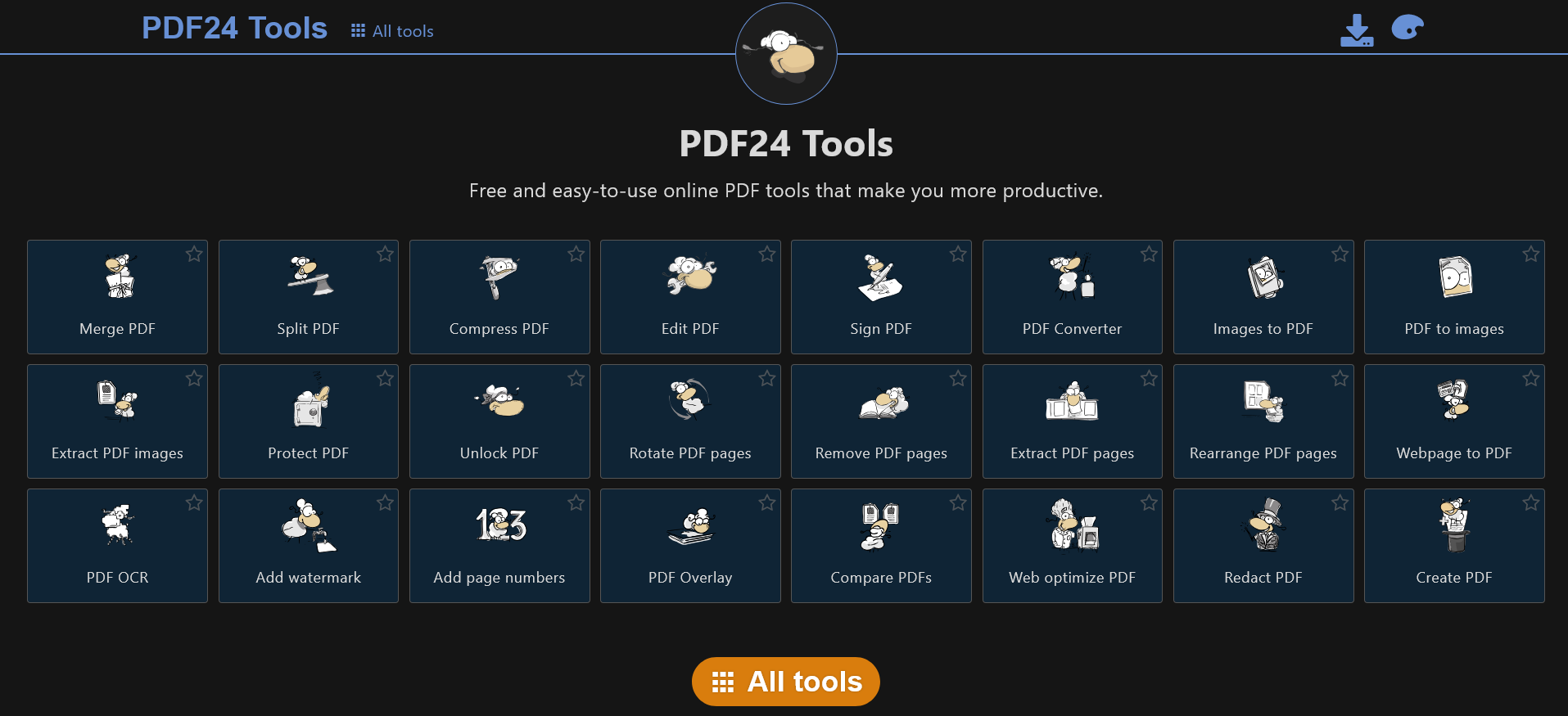
If you click on "All Tools" some of the tools I will use below will appear.
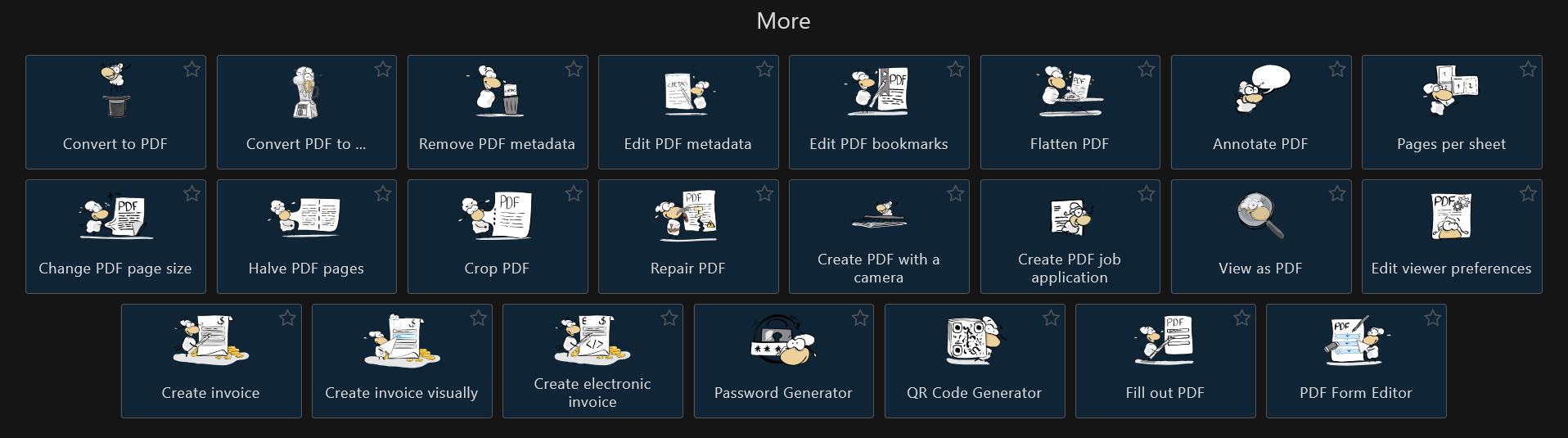
FILL OUT THE FORM
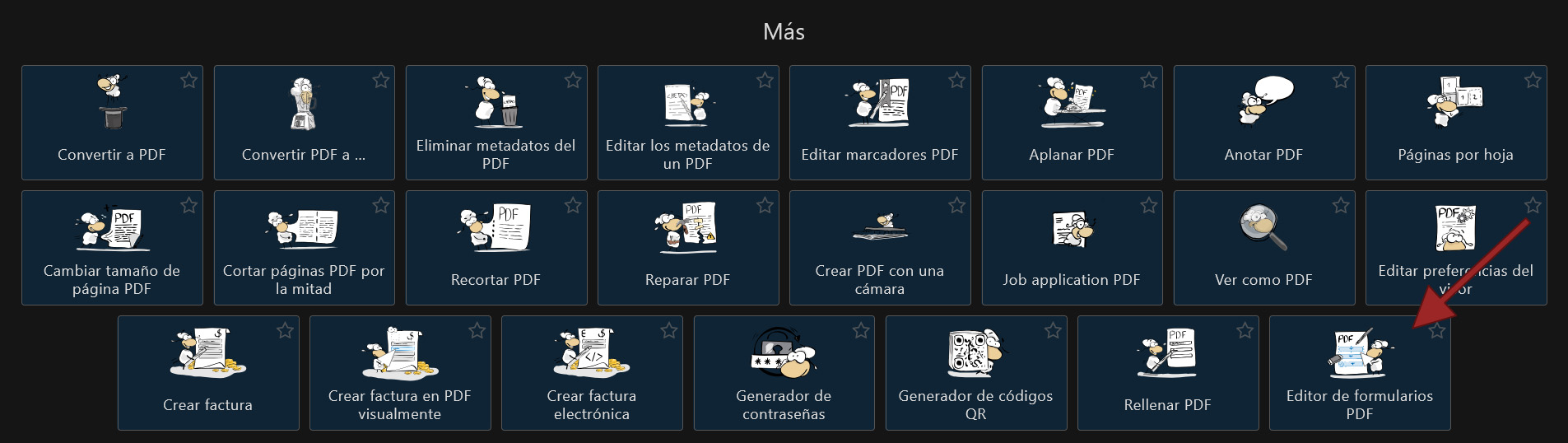
By default, at least for me, the document opened in portrait mode. This didn't cause any problems while working with it. IMPORTANT! Do not rotate the document beforehand using PDF24 Tools and then try to fill out the forms, because it will rotate the content but not the form fields. That's how I was able to do it.

You simply click on each square and fill in the "Value" and "Default Value" options.
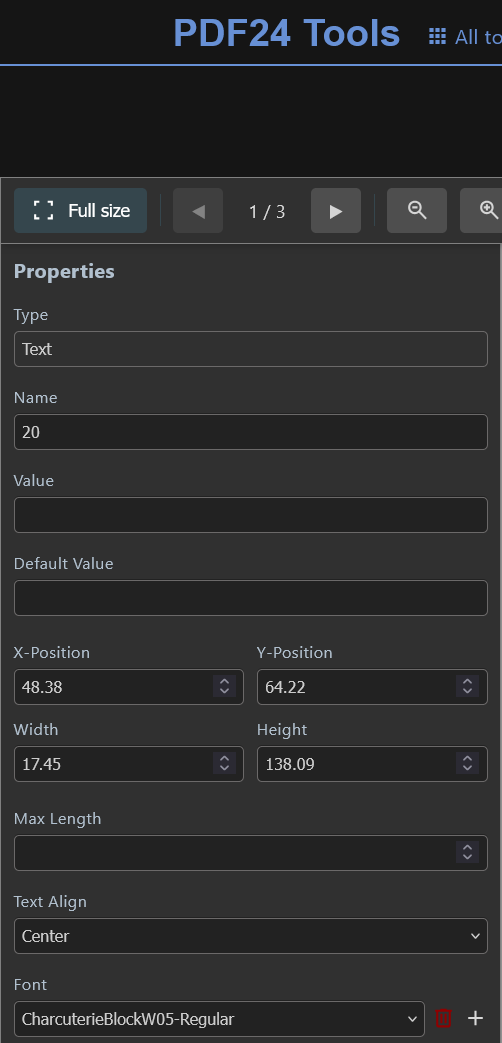
In the left-hand menu, you can change other settings such as size, font, and color. You can even resize or move the squares to be filled. The fonts are already pre-loaded, but if anyone needs them, please contact me. Make sure the "Multiline" option is enabled so that the text appears as a paragraph and not as one long line.
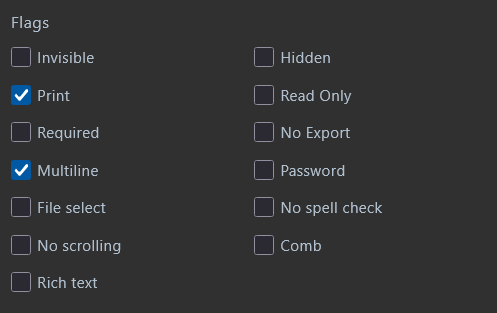
The only downside, in my opinion, is that you won't see the final text until you save and open it on your computer. To do this, when you're finished, click the "Save PDF" button, and you're all set.

This is how one of the cards looks after I opened it with Adobe.
ROTATE PAGES
It has a tool in the main menu just for that. You upload the file and click on the pages of the document you want to rotate. Then you can download it.

FILL USING TEXT BOXES
With the PDF loaded, you can use the same initial "PDF Form Editor" tool to not only edit existing forms but also add new ones. The fonts pre-loaded in the PDF document will be available for the new fillable fields. If you use templates that don't include form fields, the fonts will not be pre-loaded.
JOIN AND SPLIT PAGES FOR PRINTING
PDF24 has several tools: one for splitting PDFs into a specific number of pages, another for removing certain pages, and a third for merging PDFs. All generated PDFs come with pre-configured margins (to maximize the number of pages per sheet and minimize the number of pages printed). Many programs that perform these functions overwrite or edit the margins themselves, which can lead to slight misalignment when printing double-sided. With PDF24, my tests have worked well, but I recommend that if you're not an expert, you configure as few settings as possible to avoid errors. Remember to disable the "Fit to Page" option when printing to prevent errors.